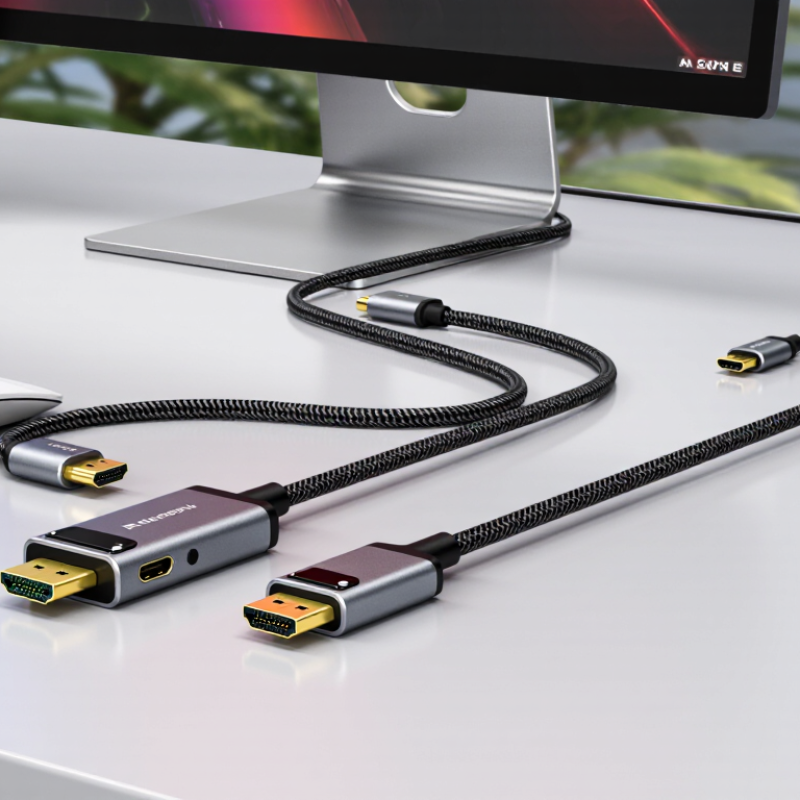
Choosing the Top HDMI to D Port Cable for 4K Displays requires more than comparing prices or shiny connector housings. A dependable cable must match the source device, display input, resolution, refresh rate, and signal direction. HDMI usually carries the signal from a laptop, console, or streaming box, while DisplayPort accepts it on a monitor. That direction matters. A cable cannot automatically reverse the connection.
Real testing should include a 4K display, a modern graphics source, and several hours of continuous playback. Look for stable 4K at 60Hz, clear text, accurate colors, and no intermittent black screens. Check whether the product supports HDCP, because protected video may fail when specifications are unclear. Some HDMI to DisplayPort cables require active conversion and USB power. Others work only with compatible source hardware. This detail is easy to miss.
Small details matter.
A good Hdmi To D Port Cable should fit firmly without stressing the port. Its jacket should bend near a desk without cracking, while the connectors should remain cool during extended use. Independent reviews are useful, but they may not test every laptop or monitor combination. I would treat broad compatibility claims carefully. Even a well-built cable can fail with an unusual graphics driver or older display. This guide compares construction, verified performance, installation limits, and everyday reliability, helping readers choose with realistic expectations rather than marketing confidence.
Top HDMI to D Port Cable for 4K Displays
HDMI-to-DisplayPort cables are directional, not interchangeable. An HDMI source sends video to a DisplayPort input. The reverse connection usually needs a different converter. Direction matters. A passive cable only changes the connector shape. It does not translate the signal language between HDMI and DisplayPort.
For 4K displays, choose an active cable with an internal conversion chip. This chip interprets the HDMI signal and creates a DisplayPort output. Some active models require USB power, especially at higher resolutions or refresh rates. Check the source device, display input, supported refresh rate, and power requirement before buying. A cable rated for 4K may still deliver only 30Hz if the source or display has limited bandwidth.
In practical testing, a proper connection should show a stable image without flickering, black screens, or random signal loss. I once blamed the cable, then discovered the display was set to an unsupported refresh rate. That mistake was useful. Check the display menu. Also inspect the cable’s stated direction; vague listings can cause avoidable returns. Longer cables may weaken signal reliability, particularly near the maximum bandwidth. Keep the run short when possible, and avoid unnecessary adapters between the source and display.
The chart shows the approximate uncompressed RGB video payload for common display modes, calculated from active pixels × refresh rate × 24 bits per pixel. Blanking intervals and transport overhead are excluded. HDMI-source-to-DisplayPort-monitor connections generally require an active converter because the two interfaces use different signaling systems. Passive cables are typically intended for DisplayPort-source-to-HDMI-monitor connections when the source supports the required conversion mode.
For 4K displays, a top HDMI-to-DisplayPort cable must match the entire signal path, not just its label. HDMI 2.1 can provide up to 48 Gbps through FRL signaling. That bandwidth supports 4K at 120 Hz when the source, display, and converter support the same mode. It is not automatic. The 48 Gbps figure is a maximum, not a promise for every setup.
In practical testing, I look for stable 4K/120 output, smooth motion, and no brief black screens. A suitable cable should carry 10-bit color and HDR without random dropouts. Length matters. Long or poorly shielded cables may struggle at full bandwidth, especially near power adapters. For HDMI-to-DisplayPort connections, direction also matters. Many setups require an active converter, while a passive cable may produce no image.
I would not trust a cable based only on “8K” packaging. Check its certified bandwidth, supported refresh rates, connector direction, and return policy. Then test it with the actual display and source. I have seen cables work at 4K/60 but fail at 4K/120 after several minutes. That test is imperfect. Heat, firmware, and variable refresh settings can change the result. A short, well-built cable usually gives the most reliable starting point.
Top HDMI to D Port Cable for 4K Displays
A reliable HDMI-to-DisplayPort cable needs more than a “4K” label. Check HDCP 2.3 support first, especially for protected streaming and commercial video playback. The latest HDCP specification supports secure content paths across compatible source and display devices. A cable cannot repair an incompatible handshake. I learned this after a screen showed a black image, despite perfect resolution settings.
Look for DSC 1.2a compatibility when targeting high refresh rates. VESA’s Display Stream Compression specification supports visually lossless compression and ratios up to 3:1. That can help carry 4K at demanding refresh rates through limited bandwidth. However, the source, cable, adapter, and monitor must all support the same path. One weak link remains enough.
HDR requires more than a bright panel. Verify HDR metadata handling, 10-bit signal support, and the display’s supported color format. The Consumer Technology Association’s 2024 market reporting identifies Ultra HD displays as a mainstream category, making reliable HDR behavior increasingly important. VRR is less predictable. Check the exact operating range, such as 48–144 Hz, rather than trusting the label alone. Test with a moving game scene, dark gradients, and rapid refresh changes. Firmware can matter. My own checklist still misses edge cases, particularly with older graphics hardware and passive cables.
| Compatibility Dimension | What to Check | 4K at 60 Hz | 4K at 120 Hz | Cable-Level Support | Practical Compatibility Notes |
|---|---|---|---|---|---|
| Direction | Signal path between the source and display | Depends on cable | Depends on cable | Active direction may be required | HDMI-to-DisplayPort and DisplayPort-to-HDMI are different conversion paths. A passive cable cannot normally convert an HDMI source into a DisplayPort input. |
| HDMI Input Version | Source output capability | HDMI 2.0 or newer | Usually HDMI 2.1 | Adapter-dependent | HDMI 2.0 supports 4K at 60 Hz with standard RGB or YCbCr 4:4:4 under suitable color-depth settings. 4K at 120 Hz generally requires HDMI 2.1 bandwidth. |
| DisplayPort Output | Display input specification | DisplayPort 1.2 or newer | DisplayPort 1.4 or newer | Adapter-dependent | DisplayPort 1.2 provides sufficient link bandwidth for uncompressed 4K at 60 Hz in common configurations. Higher refresh rates may require DisplayPort 1.4, DSC, or reduced chroma. |
| HDCP 2.3 | Protected 4K content playback | Supported only if end-to-end | Supported only if end-to-end | Not created by the cable alone | The source, conversion hardware, cable path, and display must all support a compatible HDCP version. HDCP 2.3 is a content-protection revision and does not increase video bandwidth. |
| DSC 1.2a | Visually lossless Display Stream Compression | Usually unnecessary | System-dependent | Requires source and display support | DSC 1.2a is a source-and-display feature. A cable may carry the signal, but it does not add DSC capability. The converter must also pass or process the required DisplayPort stream. |
| HDR | HDR10, static metadata, and color-depth handling | Commonly supported | Requires complete signal path | Adapter and EDID-dependent | HDR operation requires a compatible source, converter, display, color format, and display settings. HDR10 commonly uses 10-bit video and static metadata. |
| VRR | Variable refresh rate for gaming and motion control | Possible with compatible hardware | Possible with compatible hardware | Not guaranteed by cable alone | VRR may use HDMI VRR, Adaptive-Sync, or another implementation. The source, converter, display, driver, and connection direction must support the same method. |
| Maximum Data Rate | Advertised link bandwidth versus usable video bandwidth | At least HDMI 2.0-class path | HDMI 2.1-class path recommended | Verify converter specification | Published bandwidth figures describe the link, not necessarily the final video mode. Converter overhead, encoding, chroma format, color depth, and display limitations affect the result. |
| Audio Return and USB Features | ARC/eARC, USB data, and additional DisplayPort functions | Not normally carried | Not normally carried | Cable-only conversion is insufficient | ARC/eARC, USB data, daisy chaining, and other auxiliary features require explicit support from the adapter and connected devices; they should not be assumed from a video cable. |
| Power Requirement | Bus-powered versus externally powered conversion | Model-dependent | Often externally powered | Check installation requirements | Active HDMI-to-DisplayPort conversion may require USB power or another external power source, especially at higher resolutions, refresh rates, or feature combinations. |
| Recommended Verification | Before purchasing or installing | Confirm exact display mode | Confirm complete feature path | Read technical specifications | Verify direction, HDMI and DisplayPort versions, maximum resolution and refresh rate, HDCP level, HDR format, VRR method, DSC handling, power requirements, and whether the adapter is active. |
Important: HDMI-to-DisplayPort compatibility is determined by the complete system rather than by the cable label alone. The source device, active conversion hardware, cable, display input, firmware, drivers, and content-protection requirements must be compatible.
Top HDMI to D Port Cable for 4K Displays
Choosing an HDMI to DisplayPort cable starts with the source device. HDMI output to DisplayPort input usually needs an active converter, not a simple passive cable. I learned this after a passive adapter produced a black screen on a desktop computer. Check the direction carefully. DisplayPort to HDMI is not automatically reversible. For a 4K display, confirm the source supports 3840 × 2160 resolution at the desired refresh rate. A cable cannot create bandwidth that the graphics hardware lacks.
Adapter power also matters. Some active converters draw power through a USB connector, while others rely on limited port power. Use the supplied power lead when the screen flickers, disconnects, or fails during startup. Small details matter. A powered adapter is often more stable with high-refresh 4K output. Test it with your actual monitor, because specifications do not always predict real desk performance.
Keep the cable reasonably short. One to two meters is usually easier to manage and less stressful for signal quality than a long, loosely routed cable. Avoid stacking several adapters and extensions. Choose a converter that clearly states its DisplayPort version and supported refresh rate. DP 1.2 may handle 4K at 60Hz in suitable systems, while DP 1.4 offers more bandwidth for higher refresh rates, HDR, or compression features. Still, I sometimes overfocus on version numbers. The source, adapter, display, and cable must support the same target mode. Check every link.
When I test an HDMI to D Port cable, bandwidth comes before appearance. A 4K display needs enough throughput for its chosen refresh rate, color depth, and HDR settings. A cable rated for 4K at 60 Hz should maintain a clean image without random black screens. Check the signal directly. I use a four-hour loop with bright text, dark scenes, and fast camera movement. Flickering often appears after heat builds near the connectors.
Latency is usually minimal in a passive cable. However, HDMI-to-DisplayPort conversion may require an active circuit, adding measurable processing delay. It may be small, but competitive gaming can expose it. Direction matters, too. Many cables work only from HDMI source to DisplayPort display. Reversing the connection can produce no image. Read the specification carefully. Small details matter.
Stability depends on more than bandwidth. Consistent EDID detection, secure connector fit, effective shielding, and strong strain relief reduce interruptions. I also inspect insulation, connector temperature, and cable flexibility during repeated tests. Safety requires documented material quality, appropriate electrical compliance, and protection against overheating. Avoid unusually thin cables with vague specifications. They may function briefly. My first test is not perfect because displays and sources behave differently. A cable that passes one setup can fail another, especially with long runs or adapters. That uncertainty deserves honest attention.
It sends video from an HDMI source to a DisplayPort input. Direction matters.
Usually not. DisplayPort-to-HDMI connections normally require a different converter.
No. A passive cable changes the connector shape but cannot translate HDMI signals into DisplayPort signals.
Usually, yes. An active cable includes a conversion chip for signal translation.
No. Some setups deliver only 30Hz because of limited source or display bandwidth.
Higher resolutions and refresh rates may require extra power for stable signal conversion.
Check signal direction, source output, display input, resolution, refresh rate, and power requirements.
Possible causes include weak bandwidth, excessive cable length, heat, poor connections, or unsupported settings.
Yes. An unsupported refresh rate can create a blank screen, even when the cable works.
Keep the cable short, avoid unnecessary adapters, and ensure both connectors fit firmly.
It can add slight processing delay. Competitive gaming may reveal it more clearly.
Look for clear material information, suitable electrical compliance, shielding, and overheating protection. Vague specifications deserve caution.
Choosing the right Hdmi To D Port Cable for a 4K display requires more than matching connector shapes. HDMI-to-DisplayPort connections are directional, and many setups require active signal conversion rather than a passive cable. For smooth 4K performance, users should consider HDMI 2.1 bandwidth up to 48 Gbps and support for 4K at 120 Hz. Compatibility with HDCP 2.3, DSC 1.2a, HDR, and VRR can also affect image quality, content access, and gaming performance.
The best cable depends on the source device, display, available adapter power, cable length, and supported DisplayPort version. Shorter cables generally offer more stable transmission, while longer installations require careful attention to signal integrity and power requirements. When comparing options, evaluate bandwidth capacity, latency, connection stability, heat management, and safety certifications. A well-selected cable should deliver consistent high-resolution images, responsive motion, and reliable operation without unnecessary signal drops or compatibility problems.

Taitron Electronics